
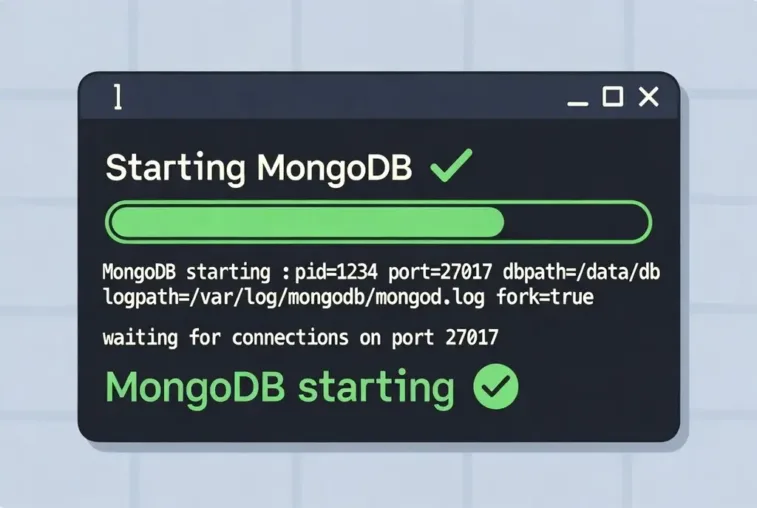
Learn step-by-step how to start MongoDB server in 2026. Follow our guide for installation, configuration, and troubleshooting tips.
2026 Complete Guide: How to Start MongoDB server
Start MongoDB server 2026: A step-by-step guide for beginners. Learn installation, basic commands & common troubleshooting tips.
Here is your 2026 Complete Guide to starting MongoDB servers across all platforms and configurations.
Overview: Three Primary Methods
| Method | Use Case | Complexity | Features |
|---|---|---|---|
MongoDB Community Server (mongod) | Production self-hosting, full control | Medium | Complete configuration flexibility |
| Atlas CLI Local Deployment | Development, testing, Atlas parity | Low | Atlas Search, Vector Search, auto-configuration |
| Docker Container | DevOps, CI/CD, microservices | Low | Portable, ephemeral, version pinning |
Method 1: MongoDB Community Server (Traditional)
macOS (Recommended: Homebrew)
Step 1: Install
bash
brew tap mongodb/brew
brew update
brew install mongodb-community@8.0
Step 2: Start as Service (Recommended)
bash
# Start automatically on boot
brew services start mongodb-community@8.0

# Verify
brew services list
Step 3: Manual Start (Alternative)
bash
# Create data directory
mkdir -p ~/data/db

# Start with custom data path
mongod --dbpath ~/data/db
Connection:
bash
mongoshStop Service:
bash
brew services stop mongodb-community@8.0[Reference: MongoDB Official Docs + CSDN macOS Setup 2026]
Linux (Ubuntu/Debian)
Step 1: Install
bash
# Import key
curl -fsSL https://pgp.mongodb.com/server-8.0.asc | sudo gpg --dearmor -o /usr/share/keyrings/mongodb-server-keyring.gpg

# Add repository
echo "deb [signed-by=/usr/share/keyrings/mongodb-server-keyring.gpg] https://repo.mongodb.org/apt/ubuntu focal/mongodb-org/8.0 multiverse" | sudo tee /etc/apt/sources.list.d/mongodb-org-8.0.list

# Install
sudo apt update
sudo apt install -y mongodb-org
Step 2: Start Systemd Service
bash
# Start immediately
sudo systemctl start mongod

# Enable auto-start on boot
sudo systemctl enable mongod

# Check status
sudo systemctl status mongod
Expected Output:
● mongod.service - MongoDB Database Server
     Loaded: loaded (/usr/lib/systemd/system/mongod.service; enabled)
     Active: active (running) since Tue 2026-01-06 07:08:28 UTC
Step 3: Verify Installation
bash
mongosh --eval 'db.runCommand({ connectionStatus: 1 })'Stop/Restart:
bash
sudo systemctl stop mongod
sudo systemctl restart mongod
[Reference: DigitalOcean 2026 Guide, GeeksforGeeks]
Windows
Step 1: Install
- Download MongoDB Community Server MSI from mongodb.com
- Run installer → Select “Complete” installation
- Check “Install MongoDB as a Service”
- Install MongoDB Compass (optional GUI)
Step 2: Start via Services
powershell
# Using Services GUI
# Win + R → services.msc → Find "MongoDB Server" → Right-click → Start

# Using Command Line (Admin)
net start MongoDB
Step 3: Manual Start (Development)
powershell
# Create data directory
mkdir C:\data\db

# Start mongod
"C:\Program Files\MongoDB\Server\8.0\bin\mongod.exe" --dbpath "C:\data\db"

# New terminal → Connect
"C:\Program Files\MongoDB\Server\8.0\bin\mongosh.exe"
Add to PATH (Recommended):C:\Program Files\MongoDB\Server\8.0\bin
Stop:
powershell
net stop MongoDB[Reference: LinkedIn Windows Setup Guide 2025]
Manual mongod Command Options
Basic Start:
bash
mongod --dbpath /path/to/dataCommon Options:
| Option | Description |
|---|---|
--port 27017 | Specify port (default: 27017) |
--bind_ip 127.0.0.1 | Bind to specific IP (security) |
--config /etc/mongod.conf | Use configuration file |
--fork | Run as daemon (Linux/macOS) |
--logpath /var/log/mongodb.log | Log file location |
--auth | Enable authentication |
Configuration File Example (mongod.conf):
yaml
storage:
  dbPath: /var/lib/mongodb
  journal:
    enabled: true

systemLog:
  destination: file
  logAppend: true
  path: /var/log/mongodb/mongod.log

net:
  port: 27017
  bindIp: 127.0.0.1

processManagement:
  timeZoneInfo: /usr/share/zoneinfo
Start with Config:
bash
mongod --config /etc/mongod.conf[Reference: MongoDB Manual – mongod options]
Method 2: Atlas CLI Local Deployment (2026 Recommended for Development)
The Modern Approach: Run a local MongoDB instance that behaves exactly like MongoDB Atlas (includes Atlas Search, Vector Search, and advanced features) without cloud signup.
Prerequisites
- Docker installed and running (Docker Desktop v4.31+ or Docker Engine v27.0+)
- Atlas CLI installed
- Optional:
mongosh, MongoDB Compass, VS Code with MongoDB extension
Installation
macOS (Homebrew):
bash
brew install mongodb-atlas-cli
brew install mongosh
Linux:
bash
curl -s https://mongodb.dev/cli | bashCreate Local Deployment
Interactive Setup:
bash
atlas deployments setupSelect:
local - Local Database- Choose name (e.g.,
localDev) - Port (default: 27017)
Default Settings:
Deployment Name   local50
MongoDB Version   8.0
Port              27017
With Custom Settings:
bash
atlas deployments setup myLocalRs --type local --port 37018Connect to Local Deployment
bash
atlas deployments connectConnection Options:
mongosh– MongoDB Shellcompass– MongoDB Compass GUIvscode– VS Code ExtensionconnectionString– For application use
Direct Connection String:mongodb://localhost:27017/?directConnection=true
Manage Local Deployment
| Command | Action |
|---|---|
atlas deployments list | Show all local deployments |
atlas deployments pause | Stop (data persists) |
atlas deployments start | Restart paused deployment |
atlas deployments logs | View logs |
atlas deployments delete | Remove completely |
Initialize with Data
Create initialization scripts in a folder (.js or .sh files), then:
bash
atlas deployments setup --initdb ./my-init-scripts/[Reference: MongoDB Atlas CLI Documentation 2025-2026]
Method 3: Docker (DevOps & Portable)
Basic Docker Run
bash
docker run --name mongodb-container -d -p 27017:27017 mongo:latestWith Persistent Storage
bash
docker run --name mongodb-container -d \
  -p 27017:27017 \
  -v ~/mongo-data:/data/db \
  mongo:8.0
Docker Compose (Recommended)
Create docker-compose.yml:
yaml
version: '3.8'
services:
  mongodb:
    image: mongo:8.0
    container_name: mongodb
    restart: always
    ports:
      - "27017:27017"
    environment:
      MONGO_INITDB_ROOT_USERNAME: admin
      MONGO_INITDB_ROOT_PASSWORD: password
    volumes:
      - mongo-data:/data/db

volumes:
  mongo-data:
Start:
bash
docker-compose up -dConnect:
bash
docker exec -it mongodb mongosh -u admin -p passwordAtlas Local Developer Image (Advanced)
For Atlas-compatible features in Docker:
yaml
services:
  mongodb:
    image: mongodb/mongodb-atlas-local
    environment:
      - MONGODB_INITDB_ROOT_USERNAME=user
      - MONGODB_INITDB_ROOT_PASSWORD=pass
    ports:
      - 27018:27017
[Reference: MongoDB Docker Docs, LinkedIn Docker Guide]
Critical 2026 Configuration: Replica Set for Transactions
How to Start MongoDB server – Configuration
Modern applications (Next.js, Node.js with Mongoose) require replica sets for transactions.
Enable Replica Set
Step 1: Edit Config (mongod.conf):
yaml
replication:
  replSetName: "rs0"
Step 2: Restart
bash
sudo systemctl restart mongod  # Linux
brew services restart mongodb-community  # macOS
Step 3: Initialize Replica Set
bash
mongoshJavaScript
rs.initiate()Verify:
JavaScript
rs.status()Connection String (Replica Set):mongodb://localhost:27017/?replicaSet=rs0
[Reference: CSDN Next.js MongoDB Error Solution 2026]
Verification & Troubleshooting
How to Start MongoDB server – Verification & Troubleshooting
Check Server Status
bash
# Linux/macOS
pgrep mongod
sudo systemctl status mongod

# Windows
tasklist | findstr mongod
Connection Test
bash
mongosh --eval "db.adminCommand('ping')"Common Issues
| Issue | Solution |
|---|---|
| Port 27017 in use | sudo lsof -i :27017 → kill process or use --port 27018 |
| Permission denied | sudo chown -R $USER /path/to/data |
| Transaction error | Enable replica set (see above) |
| Connection refused | Check bindIp in config (change from 127.0.0.1 to 0.0.0.0 for remote) |
View Logs
bash
# Linux
sudo tail -f /var/log/mongodb/mongod.log

# macOS
tail -f /opt/homebrew/var/log/mongodb/mongo.log

# Atlas CLI
atlas deployments logs
2026 Best Practices Summary
How to Start MongoDB server – summary;
- Development: Use Atlas CLI local deployments for Atlas feature parity (Search, Vector Search) with zero cloud configuration
- Production Self-Hosted: Use systemd services (Linux) or Homebrew services (macOS) for automatic restart and logging
- CI/CD & Teams: Use Docker Compose with version-pinned images (
mongo:8.0notmongo:latest) - Security: Always enable
--authin production; use--bind_ip 127.0.0.1for local-only access or configure firewall rules - Transactions: Configure as replica set even for single-node deployments to support modern application frameworks
- Monitoring: Use
mongoshover legacymongoshell; Atlas CLI provides unified local/cloud management interface